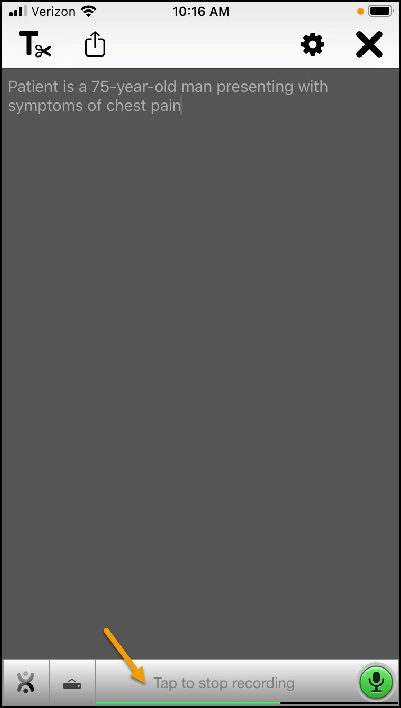
Mobile Keyboard Action Bar
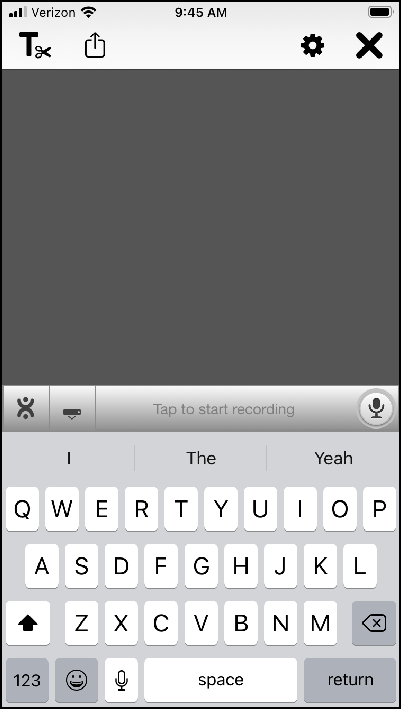
The Mobile Keyboard App Bar is the toolbar across the top of the application. It house the clipboard feature, provides the ability to send, copy, and save your dictation files, and also allows you to access the Mobile Keyboard Settings menu.
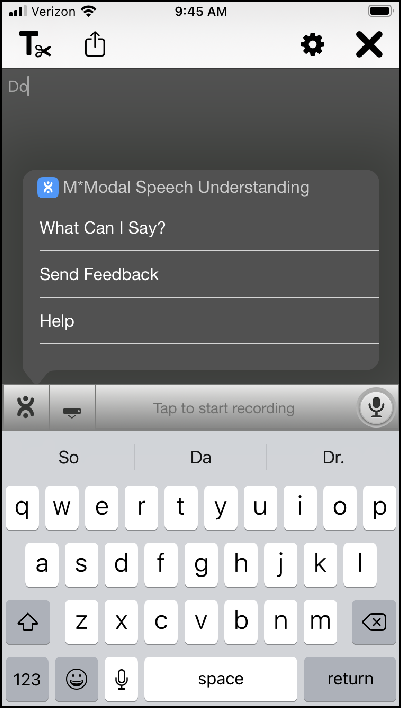
Using the M*Modal Icon, you can pull up the menu. From here you can perform the following functions:
Speech Understanding Menu
Using the M*Modal Icon, you can pull up the menu. From here you can access the What Can I Say window, send feedback, and access the online help library.
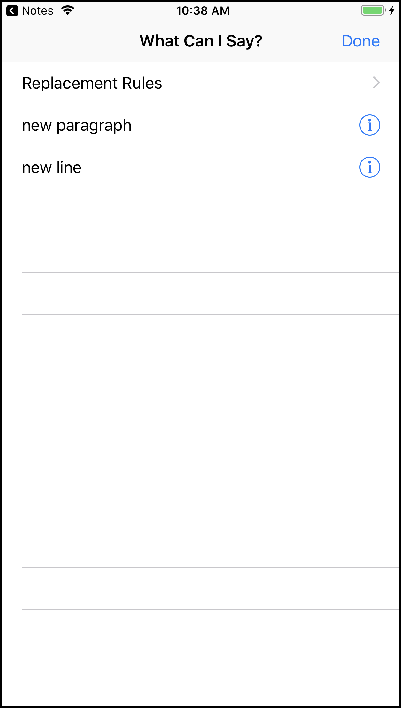
What Can I Say?
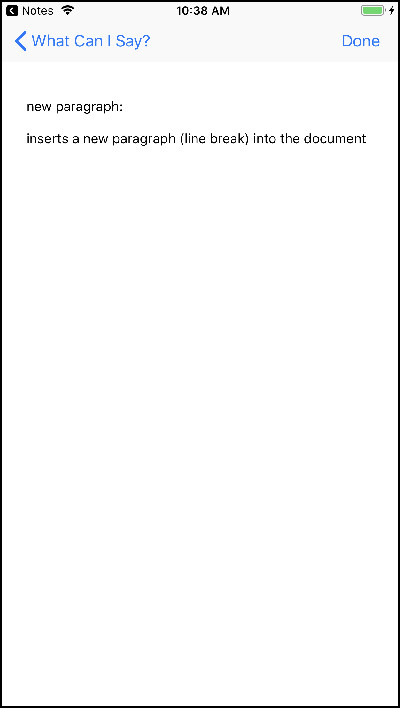
This option will display your Abbreviations and Custom Commands along with a list of speech commands based on your dictation. Clicking the information icon will open a new screen displaying additional information about that command.
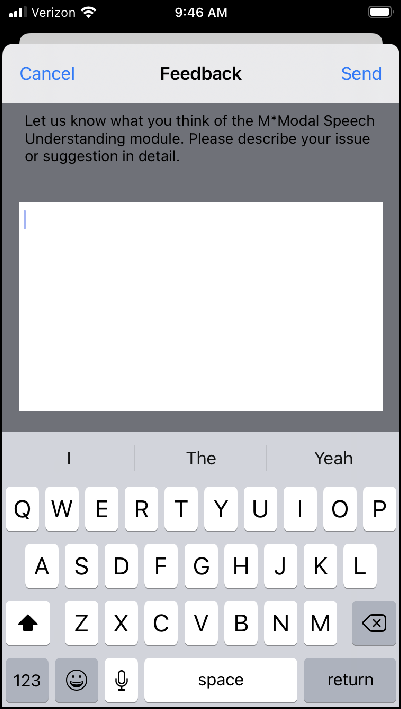
Send Feedback
The Send Feedback window is a freeform text box that you can enter your issue, comments, or suggestions to send to 3M Support. Enter your tect and press Send to finish. Press Cancel to close without sending, your text will not be saved.
Help
This option will open the online help library for documentation on features and functionality.
Keyboard / Predictive Text
Press the Keyboard icon to open and close the keyboard for typing. Predictive text in the keyboard will facilitate your typing experience.
Microphone Bar
Press the microphone bar to start recording your dictation. Press to stop dictating when finished. Your text will appear as you dictate for editing.